
Installation
This guide covers installation, language settings, your first webpage translation, and restoring the original text.
Install
Choose your browser, add the extension from its store, and follow the browser’s prompts.
| Browser | Install |
|---|---|
| Chrome | Chrome Web Store |
| Edge | Edge Add-ons |
| Firefox | Firefox Add-ons |
| Thunderbird | Build and install the email translation add-on |
| A browser with a script manager | Userscript guide |
Pin FluentRead to your toolbar for easy access. Refresh pages that were already open before installation.
On Edge for Android versions that offer extensions, find FluentRead through the browser's extension menu and open it from the installed extensions list. Use Translate page in its menu. If you enable the on-page floating ball in settings, tapping it toggles page translation and exposes its touch controls by default; tap elsewhere on the page to collapse them. Keyboard shortcuts and right-click menus are desktop controls. Extension availability on Edge for iPhone/iPad needs separate confirmation.
Your first translation
1. Open an article
A news story, blog, forum post, or online document is a good starting point. Browser settings and extension store pages do not allow page translation.
2. Pick your language
Open FluentRead from the toolbar. Leave the source language on automatic detection and choose your target language. The extension’s default target is Simplified Chinese; change it to the language you want to read.
Simplified and Traditional Chinese are separate language options. Text clearly matching the target Chinese script is skipped; a few abbreviations such as AI, CoT, or OpenAI do not trigger translation of a Chinese paragraph. Mixed scripts, complete foreign-language passages, and uncertain script detection are still translated.
Keep Free translation service to begin. It needs no API key. If the service is busy or unavailable on your network, retry later or choose another service.
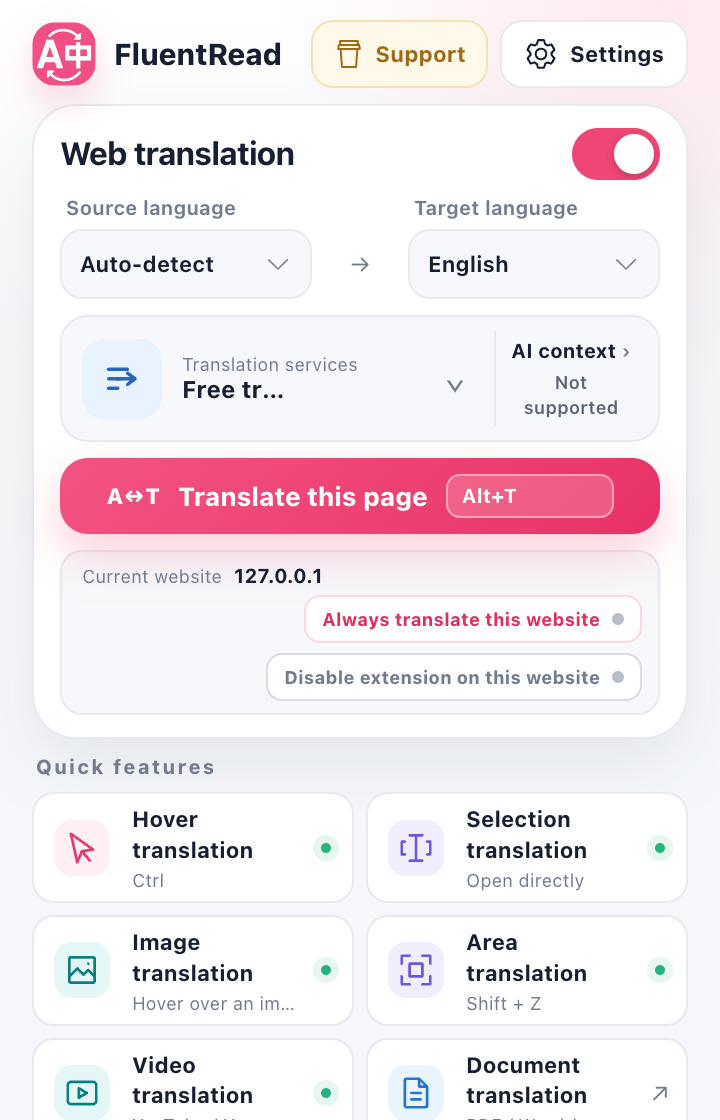
3. Translate the page
Choose the page translation button. Translations appear beside the original paragraphs. By default, FluentRead translates as you move through the page instead of making you wait for the entire article.
4. Go back to the original
Choose Restore original in the menu. To try a different language or service, restore the page and translate again.
Just one sentence?
Enable bilingual selection translation in the menu first. Select a sentence and click the nearby FluentRead icon. You can also hover over a paragraph and press the default Control key to translate that paragraph.
For sentence breakdowns and explanations, set up the reading card. It has its own AI service settings.
Nothing happened?
Check that the extension is on, refresh the page, and retry. Then follow Troubleshooting.