Webpage and selection translation
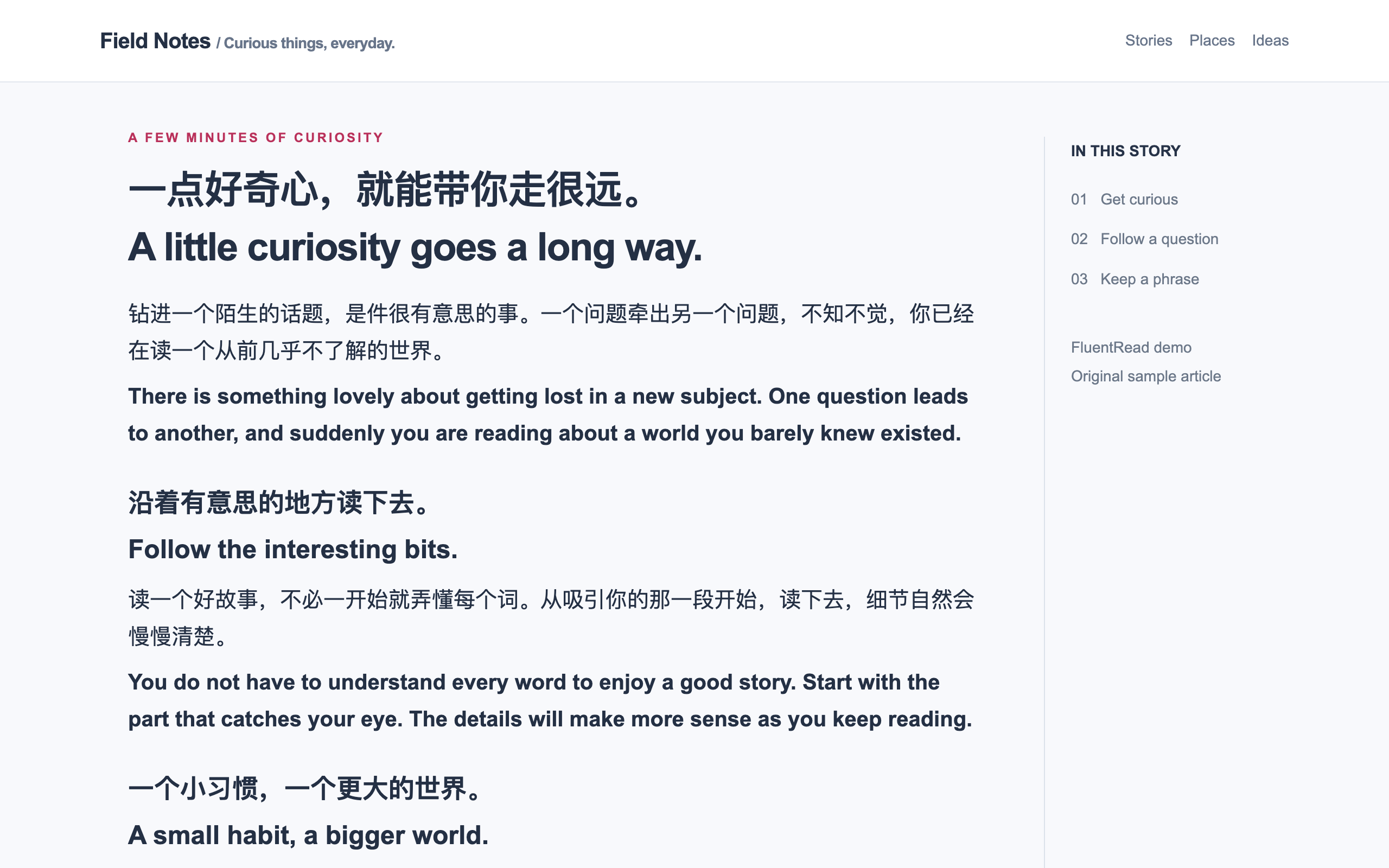
FluentRead supports bilingual webpage translation, selection translation, and hover translation. Results appear on the current webpage.
Page translation
Open FluentRead and choose the page translation button. In bilingual mode, each translation sits beside its original paragraph, and the original keeps its headings, links, and article structure. Paragraphs split only by links, bold, italics, or footnote markers are translated as a single unit and shown as one readable passage, so a sentence is never broken apart by inline formatting; machine translation services receive one request per such paragraph instead of one per fragment. Paragraphs with inline code, formulas, or images are still translated fragment by fragment so those elements stay intact in the translation. Common inline formulas are preserved where supported.
When you open a raw XML, RSS, or SVG file directly, FluentRead leaves the document untouched so the browser can display it normally. HTML and XHTML pages remain translatable.
By default, translation follows your reading position. Choose whole-page processing in settings if you want the entire page translated at once. Restore the original whenever you like, then translate again with another language or service.
Fixed-height cards and line-clamped summaries expand while bilingual text is shown, so the translation stays visible without overlapping the next card. Restoring the original also restores the page's height and truncation styles; independent scroll areas keep their original behavior.
When an announcement or modal dialog blocks the page, full-page translation handles the active dialog first and automatically continues with the page after you close it. A dialog that appears during translation pauses unfinished page tasks while preserving existing translations. If progress feedback is enabled, it explains that translation will continue after the dialog closes. Restoring the original also cancels this automatic continuation. Non-blocking notices and panels do not pause the page.
Page floating ball
Enable Full-page translation ball under Settings → General → Page helpers to show a shortcut at the edge of the page: click it to translate the whole page, click again to restore the original, and hold it to drag the ball up or down — it docks to the nearer side with space for the page scrollbar when you release it.
You can also search settings for “Full-page translation floating ball” to jump to the switch, or search for “Floating ball advanced settings” to jump to its display, position, and site options.
Floating ball advanced settings tunes the rest:
- Button display: show the translate and settings buttons on hover, always, or hide them and keep the ball alone.
- Expand delay: how long the pointer has to rest before the buttons expand. It is immediate by default; a longer delay avoids accidental expansion when the pointer crosses the edge of the page. Keyboard focus always expands immediately.
- Click action: clicking the ball itself can toggle translation, open the settings page, or do nothing. Holding it always drags.
- Smaller ball: use a reduced size so the ball covers less of the page.
- Settings entry: hide the button that opens the settings page from the ball.
- Collapsed opacity: lower values are more transparent. Hovering, expanding, and dragging always render the ball fully.
- Sites without the ball: add a registrable domain to hide the ball on that site and its subdomains. Shortcuts, the context menu, and every other feature keep working.
Turning the ball off leaves the full-page translation shortcut (Alt+T by default) and the context menu entry untouched.
Buttons show the translation only
Buttons, tabs, form labels and toolbar actions are interface controls whose size is fixed by the site's own styling. In bilingual mode this text is replaced by the translation instead of stacked with the original, so a button is never pushed taller, its label never overflows, and a toolbar row never breaks apart. Native buttons, elements with a control role, button-styled links and buttons built from input elements all follow the same rule. Restoring the original text puts the original labels back.
Full sentences in paragraphs, headings and disclosure sections still follow the display mode you picked, so bilingual reading is unaffected.
Buttons that are submitted with a form (submit buttons that carry a name) and the contents of text fields are left untouched, so the site never receives an action it cannot recognise and your own input is never rewritten.
Missing menus or interface text
In Advanced settings → Page recognition, enable the option to recognize all nodes, restore the page, and translate again. It can include visible menus and navigation added while translation is active.
A wider scope also changes more interface text. Turn it off to return to the usual scope on the next translation. For text drawn inside pictures or charts, use images or area translation.
Tune how paragraphs are handled
Advanced settings offers a few more controls over webpage translation. Each one applies from the next translation:
- Sidebar translation: also translate sidebars and navigation while reading main content; headers and footers stay untouched.
- Minimum characters per paragraph: skip paragraphs shorter than this length to cut requests for tiny fragments. Length counts characters, so
hellocounts as 5. - Characters translated without scrolling: translate this many characters from the top of the page right away; the rest follows your reading progress. Set it to 0 to rely on the viewport alone.
- Line breaks in long paragraphs: insert a line break at the end of each sentence in long translated paragraphs.
- Translation before original: in bilingual mode, place the translation above each original paragraph instead of below it.
Translation Center: compare services
Open Settings Center → Tools and learning → Translation Center, enter text, choose languages and click Translate (⌘ + Enter on Mac, Ctrl + Enter elsewhere). First use starts with a small selection of no-key services and a configured default; existing choices and order are preserved.
Manage services supports multiple selections and service/model search. It separates no-key services and saved credentials from services needing configuration; saved credentials do not prove that a connection works. Adding a service never sends a translation request. Configure opens its connection and model settings; returning keeps your text and completed results. Comparison choices do not change the default page service, but connection settings are shared with other features.
Switch between List and Side by side; narrow screens use one column. Drag cards or focus their handles and use Alt + ↑ / ↓ to reorder. Languages, order and layout save automatically. Stop all unfinished tasks or a single service without losing completed results; retry only unfinished items when needed.
Changing the text, language or model marks previous results, retaining their original language pair. Copy current results excludes outdated translations; an individual previous result can still be copied for reference.
Source text and results are not stored in Translation Center settings and clear when the settings page closes or reloads. Translating sends the text to the selected services, subject to the extension's existing request logging and statistics settings.
Section translation
When you only want to read part of a page, such as a GitHub README, an article body or one comment thread, you don’t have to translate the whole page. Click the Section button next to Translate this page in the extension menu to start picking:
- The part of the page under the mouse is outlined, and a label tells you what a click will do: how many paragraphs it will translate, that it will show the original again, or that there is nothing to translate.
- Click to translate just that section. Paragraphs on screen are translated first and the rest follow. Display mode, service and target language are the same as for page translation.
- Press ↑ to widen the section to its outer container and ↓ to narrow it again. After widening, the selection stays put while the mouse is inside the outline.
- Pick a translated section again to show its original text. If some paragraphs failed, picking the section again retries them.
- Press Esc, right-click, or click × on the hint bar at the bottom to exit. While picking, clicks on the page don’t open links or press buttons.
If you use it often, turn on its shortcut in Settings → Translation → Section translation (default Alt+R, Option+R on a Mac); press it again while picking to exit. Headers, navigation and sidebars usually stay in the original language during page translation, but if you pick one of them yourself, its text is translated too and, like other interface text, replaces the original in place so the layout stays intact. Restoring page translation also restores any translated sections.
English word lookup
The selection card includes 3,000 common English dictionary entries, available offline without a separate download. Looking up a less common word can use online dictionaries immediately while the extension downloads and verifies the full dictionary in the background for later local lookups. The full data file is about 3.9 MB and is cached by the browser. If the download fails, the common-word dictionary and online sources remain available. The fixed asset URL never contains the word you looked up.
Translation style
Choose how translations look in bilingual mode under Settings → Interface style → Translation style. Styles are grouped into Text, Lines, Highlights, and Cards, and every card shows the real effect. The preview beside them simulates a web page; switch between Light page and Dark page to check that translations stay readable on differently colored sites.
Customize appearance lets you fine-tune:
- Text color: give translations their own color, or keep Default to follow the page.
- Translation background: set an independent background for plain translations or any preset; Default keeps that preset's background.
- Line color: recolor underlines, wavy lines, borders, and quote bars.
- Highlight color: recolor markers, study highlights, backgrounds, and cards; the strength adapts to each style.
- Font size, opacity, font weight, and font: use the slider or enter an exact size from 50% to 250% relative to the original, or make translations bolder or softer.
Each color offers curated swatches, a picker, and direct input for a CSS color name, rgb(r, g, b), or a hex value. Invalid values are not saved. Reset returns to the style's own look. Color and size changes apply immediately to translations on open pages without translating again, while a new style is used from the next translation. Translation-only mode does not use these styles; the page shows a notice with a button to switch back to bilingual mode.
You can also enter declarations under Enter CSS directly, such as color: rebeccapurple; background: rgb(255, 248, 204); font-size: 117%;. Leave out the selector. Common appearance properties are supported; URLs, selectors, and positioning properties are ignored. Valid declarations override the matching controls above and appear in the live preview. Saved styles show their own effect on their cards.
Blur until hover keeps translations blurred until you point at them, so you can read the original first and then check your understanding.
Bilingual sentence highlighting
Enable Bilingual sentence highlighting under Settings → Interface style → Translation style, then hover over a sentence on either side to highlight its counterpart. No click or shortcut is needed. The translation style preview next to it contains several sentence pairs to try.
Equal sentence counts are paired in order. Split or merged sentences are grouped using order and relative length. This local approximation cannot verify translation accuracy and may not match heavily rewritten or reordered text. Hovering sends no translation requests and changes neither page text nor layout.
This works in bilingual mode. Restoring the original, disabling the option, leaving the text or selecting text clears the highlight. Browsers without the CSS Custom Highlight API keep normal translation without the highlight.
Selection translation
Enable bilingual selection translation in the extension menu, select a word or passage, and click the nearby icon. If you selected text only to read or copy it, scrolling the page or its content pane dismisses the unopened icon or dot; an open card stays available. Copy the result or read the original aloud. In the browser extension, the card keeps its screen size when you zoom the page in or out. Drag the header or the blank space around the content to move the window, or drag any edge or corner to resize it. Text wraps to fit the width, and long content scrolls inside the card. Your adjustments last until the card closes; a new selection opens at the default size near the selected text.
With Chinese or English as your default target, the card's “Translate to” buttons let you change the language for this selection without changing the page translation setting. Selections already in the target language are skipped by default. To translate both Chinese and English selections directly, turn on Chinese–English selection translation under Settings → Translation → Selection translation. The card then chooses the other language for same-language selections. You can also open a skipped selection through the right-click menu and translate it in the opposite direction.
If you often select text to copy or read it and prefer no nearby translation hint, choose Context menu only under Settings → Translation → Selection translation → Trigger. The selection icon and dot will stay hidden. To translate, select text and choose Translate selected text from the context menu. Keep the context menu and its selection entry enabled. The reading card has its own selection-hint setting.
You can change the trigger to a direct popup, a key, or another gesture, and adjust its delay. A regular translation service is enough for a quick translation.
Hover translation
Hover over a paragraph and press Control to translate it. You don’t need to select text or translate the whole page. See Shortcuts & triggers to change the behavior.
The same paragraph can also be taken as text: press Alt+C to copy the paragraph under the mouse to the clipboard. A translated paragraph is copied the way it is displayed. Adjust the switch, the shortcut, and what gets copied in Settings → Translation → Paragraph copy.
AI reading card and learning center
The reading card can explain tone, unpack a long sentence, show usage, or suggest a practice question. It uses a configured AI service and starts when you choose an action.
Save words, phrases, and sentences to the learning center to revisit them in context.
Images, files, and subtitles
- Images: read translated text over the original image.
- Areas: draw around a small part of the screen and get text you can copy.
- Documents: import, read, edit, and download a file.
- Video subtitles: use bilingual subtitles on YouTube and X.
Your service and settings
Use the ready-to-use free service or connect a provider such as DeepL, an AI service, or a local Ollama model. Supported AI services can also use glossaries.
Set regular sites to translate automatically, exclude others, and adjust the website reading area when content is missed. Change translation styles, themes, and menu layout in Settings.
Under Advanced options → Request limits, translation concurrency defaults to 10, with 10 requests per second and 250 per minute. Existing saved settings are preserved. Set either rate limit to 0 to disable that limit.
More translation languages
Source and target selectors now offer 52 language options, including Simplified and Traditional Chinese, German, Portuguese, Italian, Arabic, Hindi, Vietnamese, Thai, Ukrainian, and Swahili. Input translation and the writing assistant share the same list. Automatic source detection remains available, and existing language settings are preserved.
Choose a translation service that supports your language pair. Language coverage varies between machine translation services, AI models, and Chrome built-in translation; a listed language is not a guarantee of support from every service. Image OCR and video speech recognition still depend on their own language packs or models.
DeepL currently does not support Kannada or Sinhala; selecting either prompts you to choose another service. Norwegian codes for Google and NiuTrans, and Serbian codes for Microsoft, are converted automatically.
Bilingual share cards
Hover over a completed bilingual paragraph and choose Create card, or use Create card at the bottom of a selection translation result. The default Coral style pairs a red quote area with a cream translation area. Sky uses a centered blue layout; Prism adds luminous text on a dark background; Pearl presents both languages in two columns. Each style has a thumbnail preview.
Choose a format, text size, and language order. Edit the excerpt without changing the webpage, hide the source or FluentRead credit, and save the preview as a high-resolution PNG. The source defaults to the website domain without the page path or query. Copy image is available where supported; save the PNG to share it elsewhere.
The exported image matches the preview. Text is never silently cropped: choose Fit to text or shorten excerpts that do not fit a square. Images are generated locally, without additional translation requests or uploads. Only appearance preferences are stored; excerpt text and generated images are not saved in extension settings. Formula and other rich content are laid out as text rather than a screenshot of the webpage.