
Appearance & reading aids
Make translations easy to distinguish from the original and comfortable to read.
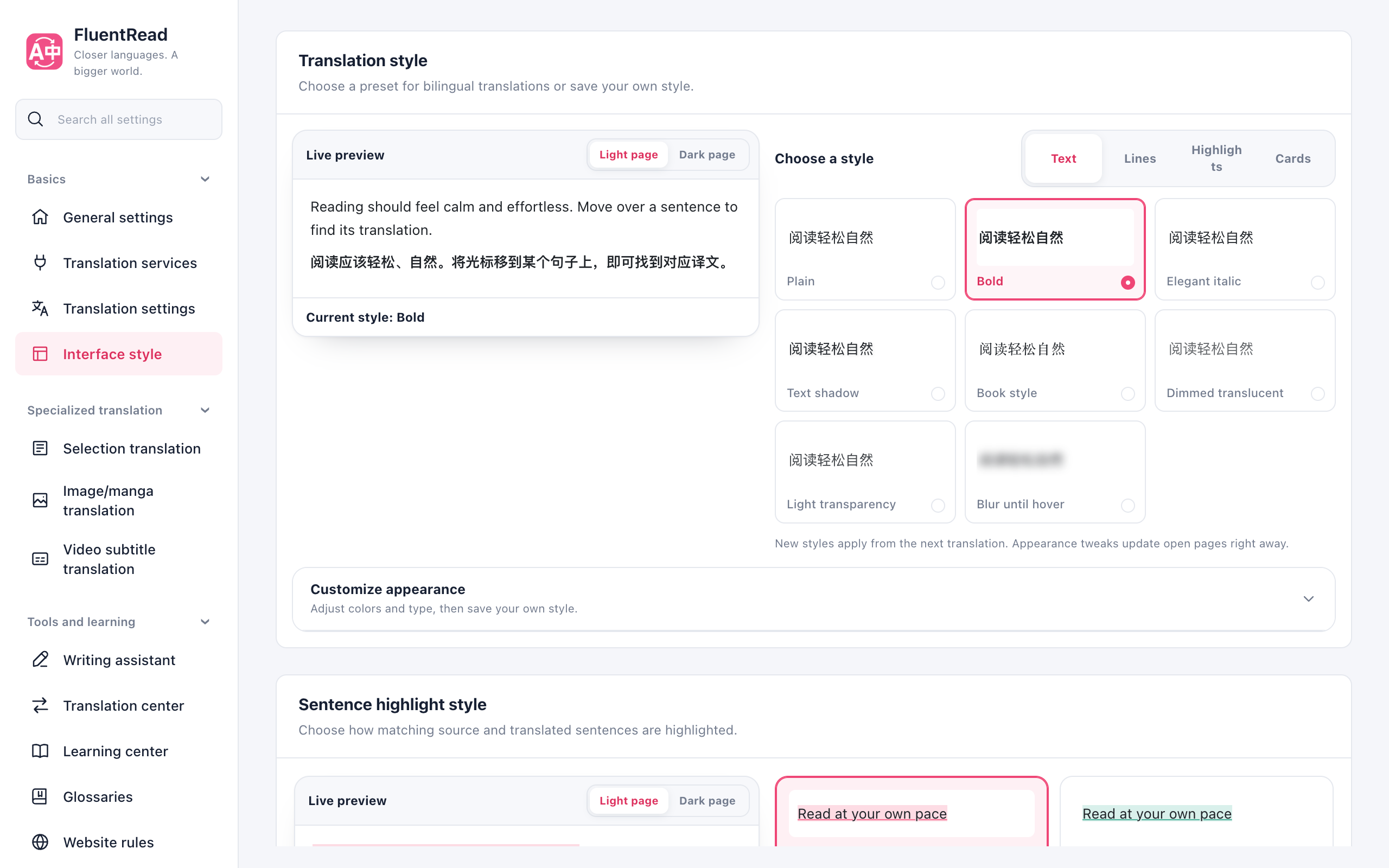
Adjust the translation style
- Open Settings → Interface style → Translation style.
- Choose a style card and compare its preview. Adjust colors and font size if needed.
- Appearance controls update existing translations immediately. A different base style applies to the next translation.
Translation-only mode does not use bilingual styles. Switch to bilingual display first.
Translation style
Translation style
Choose how translations look in bilingual mode under Settings → Interface style → Translation style. Styles are grouped into Text, Lines, Highlights, and Cards, and every card shows the real effect. The preview beside them simulates a web page; switch between Light page and Dark page to check that translations stay readable on differently colored sites.
Customize appearance lets you fine-tune:
- Text color: give translations their own color, or keep Default to follow the page.
- Translation background: set an independent background for plain translations or any preset; Default keeps that preset's background.
- Line color: recolor underlines, wavy lines, borders, and quote bars.
- Highlight color: recolor markers, study highlights, backgrounds, and cards; the strength adapts to each style.
- Font size, opacity, font weight, and font: use the slider or enter an exact size from 50% to 250% relative to the original, or make translations bolder or softer.
Each color offers curated swatches, a picker, and direct input for a CSS color name, rgb(r, g, b), or a hex value. Invalid values are not saved. Reset returns to the style's own look. Color and size changes apply immediately to translations on open pages without translating again, while a new style is used from the next translation. Translation-only mode does not use these styles; the page shows a notice with a button to switch back to bilingual mode.
You can also enter declarations under Enter CSS directly, such as color: rebeccapurple; background: rgb(255, 248, 204); font-size: 117%;. Leave out the selector. Common appearance properties are supported; URLs, selectors, and positioning properties are ignored. Valid declarations override the matching controls above and appear in the live preview. Saved styles show their own effect on their cards.
Blur until hover keeps translations blurred until you point at them, so you can read the original first and then check your understanding.
Bilingual sentence highlighting
Bilingual sentence highlighting
Enable Bilingual sentence highlighting under Settings → Translation settings → Reading assistance, then hover over a sentence on either side to highlight its counterpart. No click or shortcut is needed. The reading preview next to it contains several sentence pairs to try.
Under Settings → Interface style → Sentence highlight style, choose from eight presets or customize the background and underline colors, their opacity, the line style, and thickness. Set background opacity to 0% for lines only, or choose No underline for background only. Solid, dotted, dashed, double, and wavy lines are available, with live previews on light and dark pages. Changes are saved automatically and apply to open pages without translating again. Reset to preset clears overrides; choosing a preset also restores its appearance. The enabled state is saved separately.
You can also enter declarations under Enter CSS directly:
background-color: rgba(255, 220, 100, 0.3);
text-decoration: underline wavy #9d4edd;
text-decoration-thickness: 2px;
Valid declarations override the matching controls and apply immediately to previews and open pages. Text colors, backgrounds, underlines, text shadows, and other browser highlight paint properties are supported. Leave out the selector; unsupported declarations are flagged and ignored.
Enter a name and choose Save as new style to keep up to 12 independent sentence highlight profiles, each including its base preset, controls, and CSS. Cards show their actual appearance and let you switch profiles; saved profiles remain after reopening settings. Changes apply immediately, while Update selected style saves edits and a new name back to that profile. Save as new style keeps the old profile. Delete selected style removes the saved profile and keeps the current appearance available for editing. Built-in presets and the highlight switch remain independent.
Equal sentence counts are paired in order. Split or merged sentences are grouped using order and relative length. This local approximation cannot verify translation accuracy and may not match heavily rewritten or reordered text. Hovering sends no translation requests and changes neither page text nor layout.
This works in bilingual mode. Restoring the original, disabling the option, leaving the text or selecting text clears the highlight. Browsers without the CSS Custom Highlight API keep normal translation without the highlight.