Choose your translation service
FluentRead displays translations produced by your selected service. Use the default service or configure another machine translation provider, AI service, or local model.
Configure a service
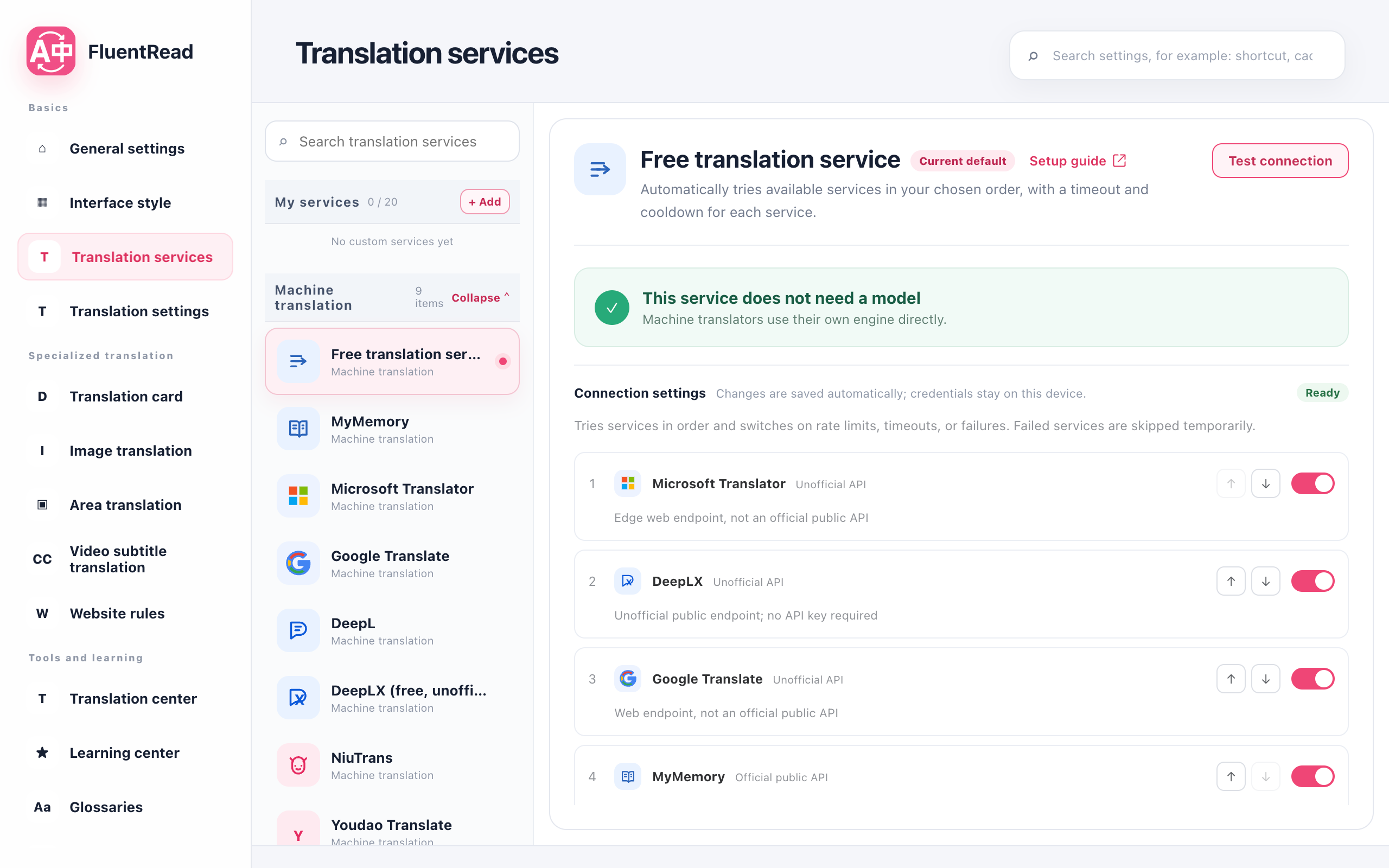
The service directory is organized by category and can be searched. Selecting an entry opens its settings; choose the default service later from General settings or the extension menu.
The model and connection fields stay visible. Key management sits beside the API Key fields. Model preferences, Prompt templates, Request limits, and API compatibility expand independently as needed. Collapsing a section keeps its settings active and saved. Cloud services show a quota summary; expand the setup guide for instructions. Eligibility and overage behavior depend on the provider and plan.
In General settings, Configure service beside the default service opens its configuration directly. On narrow screens, the service directory opens with Switch service to configure and closes after selection.
Which one fits?
| What you want | A starting point |
|---|---|
| Start immediately | Free translation service, without an API key |
| Use an existing provider | The corresponding Microsoft, Google, DeepL, or other service |
| Trade a cloud key for a stable free quota | A Cloud vendors service: Google Cloud, Azure, Alibaba Cloud, Tencent Cloud, Baidu, or Volcengine, each with a monthly free character quota |
| Explain sentences, tone, or expressions | An AI service with a working model and credentials |
| Translate text locally | Local model translation, Ollama (local), or available Chrome local translation |
FluentRead is free and open source. Third-party services may charge separately. A web chat subscription does not necessarily include API access.
Connect and use it
- Open translation services in settings and select the service to configure.
- Enter its key and address when available; select a model for AI services. Use details supplied by the provider. Check connection remains available with an empty API Key; services that require credentials report missing credentials or authentication failure in the result.
- Check the connection from the right side of the service details title bar. This sends a short request and may use a small amount of your allowance.
- Return to General settings or the extension menu, select the service as the default, and try a sentence.
Configuring is not selecting the default
Clicking a service in the directory only opens its configuration. The Check connection action is on the right side of the service details title bar. It does not change the webpage default; choose the default service from General settings or the extension menu. Documents, subtitles, and the reading card have their own selections.
Use several API keys
For a service with an API Key field, open Key management below the API Key fields, enable key rotation, and add one key per row using Add key below the list. Existing single keys are kept. All rows use the same service address, model, region, and custom headers; use a separate custom service when those settings differ.
Requests are shared evenly at first. If a key fails, FluentRead tries another and temporarily reduces how often the failing key is used. Invalid keys and exhausted quotas can be paused. The default recovery wait is 1 minute; adjust it from Settings → Advanced → Request limits between 1 and 60 minutes. A rate limit with a server-provided waiting period follows that period instead. Changing keys does not bypass your configured request rate or total timeout. Health is temporary and resets when the extension's background process restarts.
Check all above the list tests each distinct, filled row in order, with the summary and individual results shown together. Select a failed status to see its reason, or use the row's check button to test it again. You can stop the remaining checks. A failed row does not stop the rest. Empty rows and duplicates do not make extra requests. Checks send a short translation and may use a small amount of your provider allowance. Results describe that check, rather than guaranteeing future availability.
The free service
Free translation calls the enabled free endpoints. Compact cards let you choose which endpoints participate. Experimental endpoints are separate, with enabled choices listed in the summary.
The default Automatic balance mode places Microsoft first and prefers it for the initial request. The background scheduler dynamically adapts distribution using success rate, response time, and recent errors. A failed request switches to another service. Disable entries or choose Priority order to try them in list order. Keep at least one enabled.
The scheduler maintains these allocation signals automatically. Users configure only enabled services and the mode; health and performance records used for balancing stay local.
Microsoft, Tencent TranSmart, Volcengine, Google, Youdao Web, ICIBA, Yandex, DeepLX, and MyMemory are enabled by default without API keys. Sogou, Reverso, Lingva, and Apertium are optional. The first three remain experimental; Apertium currently has no Chinese language pairs.
Rate limits normally pause a provider for minutes, blocked access for hours, and exhausted daily quotas for about a day. Recovery records are stored locally and survive background restarts. Each attempt has a five-second timeout by default.
Free services have changing availability and allowances. Public interfaces and intermediaries have their own data policies. Keep only one entry, or select a standalone service, if you want requests to go to only that provider.
MyMemory
Select MyMemory and click Check connection. The contact email is optional. The check translates a fixed short sentence from English to Chinese, so you do not need to change your source or target language first. Your saved language and email settings are preserved.
Regular translation still uses your selected languages. If automatic detection cannot identify the source language of a short text, select it manually and retry.
DeepL
Choose API Free or API Pro and enter the matching key. A DeepL website subscription and a DeepL API plan are different products.
DeepLX
Enter the full translation endpoint, such as https://deeplx.example.com/translate. Entering only a domain does not automatically add /translate. Leave it blank to use the default public endpoint.
Endpoints that do not require authentication can be used and checked with an empty API Key. If the site requires authentication, enter only its Token value, without a Bearer prefix. The Token is sent in the request header by default. If the site requires it in the URL, follow the site's instructions:
- Query parameter:
https://deeplx.example.com/translate?token= - URL path:
https://deeplx.example.com//translate
Keep exactly as written. It is replaced with your saved API Key when sending, so you do not need to put the actual Token in the URL. A configured proxy URL takes priority; use the full path and the site's required Token format there too. Then click Check connection.
If several endpoints are configured, an empty Key skips addresses containing or and uses any valid anonymous addresses in the effective list. If all effective addresses require a token, enter a Key first. An unresolved token address does not silently switch to the default public endpoint.
These settings apply only to the standalone DeepLX service. DeepLX in the free fallback service uses the default public anonymous endpoint.
Cloud vendors
The Cloud vendors group lists the official machine translation APIs of the major cloud platforms: Google Cloud Translation, Azure Translator, Alibaba Cloud Machine Translation, Tencent Cloud Translate, Baidu Translate, and Volcengine Translation. They are separate from the free web endpoints in the machine translation group (Google Translate, Microsoft Translator): the free endpoints need no key but may be throttled, while the cloud APIs need a key issued in the vendor console and give you a stable service with a published free quota.
| Service | Official free quota | You fill in |
|---|---|---|
| Google Cloud Translation | 500,000 characters per month | API key |
| Azure Translator | F0 tier: 2 million characters per month | Key + region |
| Alibaba Cloud Machine Translation | General edition: 1 million characters per month | AccessKey ID + AccessKey Secret + region |
| Tencent Cloud Translate | 5 million characters per month | SecretId + SecretKey |
| Baidu Translate | Standard tier: 50,000 characters per month | APP ID + secret key |
| Volcengine Translation | 2 million characters per month | Access Key ID + Secret Access Key + region |
Select any cloud vendor in settings to see its free quota summary. Expand Setup guide for the three-step instructions and links to the console and API docs. Follow the guide to obtain the key, enter it in the form below, and click Check connection. Free allowances, eligibility and overage behavior depend on the provider console and your current plan.
Match the region to your resource
For Azure, Alibaba Cloud, and Volcengine the region is part of the request signature or decides the request host. A wrong region usually shows up as 401/403 or a signature mismatch; keep it identical to the region of the resource in the console.
Paired secrets (AccessKey Secret, SecretKey, and similar) are stored only on this device, like API keys. Shared configurations and configuration history never include them; full backups keep them.
Local model translation
Choose a model under Settings → Translation services → Local model translation and download it. Once it is available offline, try a short translation, then select this service in the extension menu. No API key or separate server is required; translation text stays on this device.
| Model | Download | Intended use |
|---|---|---|
| Chinese / English lightweight pack | About 239 MB | Simple everyday sentences in both directions; review technical terms and complex wording |
| Hunyuan Hy-MT2 1.8B | About 1.13 GB | Chinese, English, Japanese and more languages; more demanding text, with higher memory requirements |
| Japanese / English lightweight pack | About 214 MB | Mainly Japanese-to-English reading; English-to-Japanese quality is limited, so prefer Hunyuan |
Downloads continue when you leave the settings page. You can pause them and resume saved progress after restarting the browser. Files must finish verification before translation is available, even if the progress is nearly 100%.
Deleting a model requires confirmation and keeps other models and settings. Model files belong to the current browser and are not included in settings backups.
Download size is not runtime memory. Even a lightweight pack can briefly add around 1–2 GB of memory use, with CPU spikes while loading. Models are released after 30 seconds of inactivity. Text length, browser and graphics hardware affect actual usage. Unsupported browsers show a warning for Hunyuan. The userscript edition does not download or run these models.
Local Hunyuan is separate from the Hunyuan cloud service. Model sources and licenses are linked from each card's information button.
AI services
New configurations favor lightweight models for everyday translation:
| Service | Default model |
|---|---|
| DeepSeek | deepseek-flash (V4.1 Flash) |
| OpenAI | gpt-5.4-mini |
| Gemini | gemini-3.5-flash-lite |
| Qwen | qwen3.8-flash |
| Claude | claude-haiku-4-5 |
| Xiaomi MiMo | mimo-v2.6-flash |
| StepFun | step-2-mini |
| OpenRouter | google/gemini-3.5-flash-lite |
Catalog updates preserve your saved supported and custom models. MiMo will retire mimo-v2.5 and mimo-v2.5-pro at 10:00 Beijing time on October 21, 2026. Saved official selections move to mimo-v2.6-flash and mimo-v2.6-pro respectively; custom model names stay unchanged. See the Xiaomi retirement notice. Thinking is off by default for DeepSeek; models that cannot disable it use their lowest supported level. Larger models remain available for manual selection. Charges depend on the provider.
See the DeepSeek changelog for the new ID. The previous deepseek-v4-flash ID remains available as a compatibility alias. The retired Hunyuan hy3-preview is migrated to hy3.
Select a configured service and model. Use the custom-model option if yours is not listed. For a compatible third-party endpoint, add the address and model under your custom services.
For Azure, enter the actual deployment name as the model and your resource or complete API address as the endpoint.
Custom-service Base URLs
Custom services use OpenAI Chat Completions. Enter a complete endpoint or a Base URL ending in a version path such as /v1. For example, https://opencode.ai/zen/v1 sends requests to https://opencode.ai/zen/v1/chat/completions. A bare host and port gets /v1/chat/completions; other nonstandard paths are treated as complete endpoints. A proxy configured in API compatibility still takes priority and is used as a complete endpoint without automatic path completion. Query parameters are preserved.
For OpenCode Zen or OpenCode Go, check both the model protocol and its endpoint. Their Base URLs are https://opencode.ai/zen/v1 and https://opencode.ai/zen/go/v1, respectively. Choose a model supporting /chat/completions in the official model table, and enter its API model ID without the opencode/ or opencode-go/ configuration prefix. Models requiring /responses, /messages, or the native Gemini API cannot be used directly with this custom service.
Local ACP agent bridge
A browser extension cannot launch a local CLI or connect to ACP over standard input and output. FluentRead offers an optional local ACP bridge. It listens only on 127.0.0.1 and forwards text requests from a custom service to an authenticated GitHub Copilot CLI or OpenCode ACP agent. Install the corresponding official CLI and sign in using its own instructions first. You do not enter the agent's login credentials in FluentRead; the CLI uses its own sign-in state or environment variables. The bridge does not change the provider's quota or usage rules.
- From the FluentRead source directory, run
node scripts/agent-bridge/bridge.mjs --agent=copilot. Use--agent=opencodefor OpenCode. Keep the terminal running. - The terminal prints a local endpoint and a token generated for this run. Add a Custom service with endpoint
http://127.0.0.1:47627/v1/chat/completions, put the printed token in API Key, set the model todefault, then use Check connection.defaultuses the CLI's configured default model; you may also enter a model ID advertised by the agent over ACP. Update the API Key if a restart generates a new token. - Select that custom service for text translation. Every request gets a separate session. The bridge disables agent tools and rejects file, terminal, and permission requests. It supports only text, non-streaming Chat Completions requests; image requests are rejected. Press Ctrl+C in the terminal to stop the bridge.
Browser requests must come from an extension origin and include the token; another local process with the token can also call the loopback endpoint. Keep the token out of public exports, screenshots, and Issues. Page text is sent to the model service used by the selected agent, which may also retain local session history. The bridge processes requests serially. Whole-page translation can issue multiple agent prompts, each of which may consume subscription allowance. Available models and quota depend on your provider account. This feature has protocol tests with a local mock ACP agent but has not been verified with a live Copilot or OpenCode account.
If you have an OpenCode Zen API key and only need its currently free Big Pickle model, configure the Zen API endpoint above with model ID big-pickle; the ACP bridge is unnecessary. Free-model availability, duration, and data terms are listed in the official model table.
If the connection check returns HTTP 404 with an HTML page, check the endpoint and model protocol; that response does not establish that the API key is invalid. JSON model errors retain the provider's specific explanation. Never include API keys in public issue reports.
Extra AI context can reference the page title and parts of the article to help with meaning. It sends more text and can increase usage and waiting time. Multi-paragraph translation groups nearby passages and may reduce request counts, but failures can still require retries. Both options are off by default and can be enabled independently.
Restore existing translations before translating with changed settings. Use glossaries for consistent terminology.
Tencent Hunyuan connection failures
Select Tencent Hunyuan and enter an API key created in the Hunyuan console. The default uses the official Hunyuan endpoint. Tencent Hunyuan Translate is a separate service that requires a SecretId and SecretKey.
If an older version reports Failed to fetch, enter https://api.hunyuan.cloud.tencent.com/v1/chat/completions under Request settings → Proxy URL, then check the connection again. For a custom proxy or TokenHub, use the full endpoint and matching key provided by that platform.
See Tencent's official integration guide for endpoint and API key instructions.
Local models
Install and run Ollama and download a model before connecting it. Performance depends on the model and computer.
Pick Ollama (local) under aggregation platforms: it connects to http://127.0.0.1:11434 by default and needs no API key; enter the name of a model you have pulled (for example qwen3:8b). If Ollama runs on another machine or port, enter the full /v1/chat/completions URL in Server URL. Browser extensions must be allowed as an origin: start Ollama with OLLAMA_ORIGINS=*, otherwise requests are rejected by CORS.
The aggregation platforms group also includes Mistral AI, Cohere, Cerebras, Together AI, Fireworks AI, DeepInfra, and Perplexity (OpenAI-compatible platforms). Configure them like any other AI service: enter the platform key and choose a model.
Choosing a local model determines where that translation goes. Dictionary, read-aloud, downloads, and other independent tools can still use network services. See Data & privacy.
Connection failed?
Check the key, address, model, and provider balance. If short sentences work but long pages do not, reduce concurrency or try another service. Never include real credentials in feedback. See Troubleshooting.
Youdao Web and ICIBA currently support English and Simplified Chinese directions. Yandex does not support Traditional Chinese targets. Unsupported directions fall back to another candidate. Free web endpoints may be rate-limited or unavailable.
Custom request headers
Select a custom OpenAI-compatible service in the categorized directory, then open API compatibility → Custom request headers. Enter a JSON object with string values, for example:
{"x-opencode-session": "a71a2ad6-1d1f-4e92-a30e-e35c8fd623ab"}Headers apply only to this service and override matching defaults regardless of letter case. Leave blank to use defaults. A saved session ID stays the same across requests. Click Check connection after configuring it. Extra authentication headers, HTTP-Referer, and X-Title are supported. If your service uses custom authentication without a Bearer token, turn off the model's API Key requirement. Browser restrictions on headers still apply.
Headers are stored as credentials: public exports and history omit them, while full backups retain them. Re-enter them after changing the endpoint or proxy.
OpenCode Go's documentation requires a stable session header and also specifies client and traffic requirements. Configurable headers do not imply certified compatibility with that service.