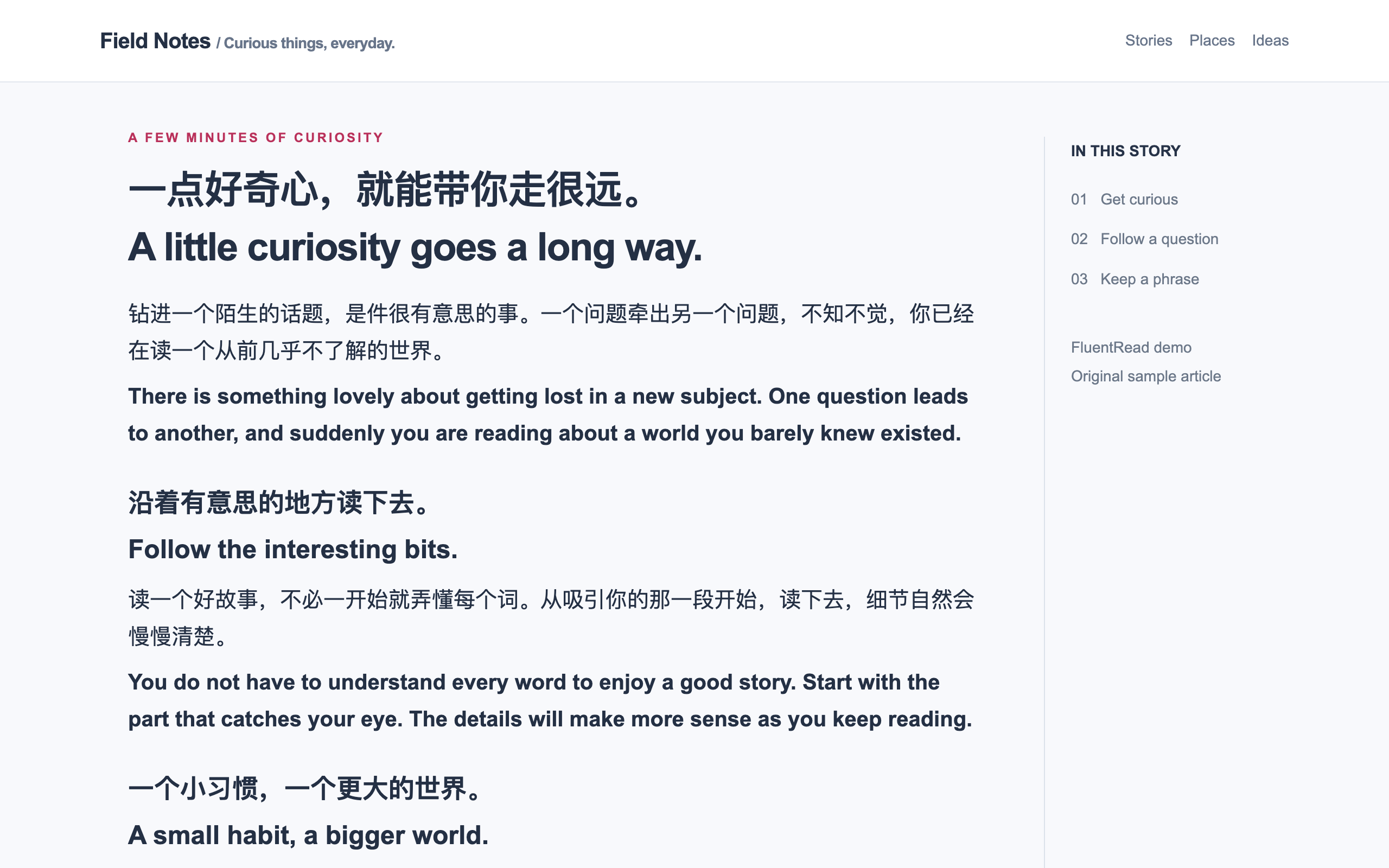
阅读的乐趣。
阅读为我们打开一扇了解世界的窗。
一本好书能带你发现新的天地。
Personal corrections are off by default. Enable 个人校订 (Personal corrections) under Settings → Translation → Reading assistance when you need them. Hover a bilingual translated paragraph and select 校订译文 (Edit translation), or press Alt + Shift + E. Edit the draft, preview the affected exact sentences, and confirm the scope before saving. The default scope is 仅当前网页 (Only this webpage); different addresses, including query parameters and fragments, have separate records. A project is a group of related webpages and applies only to webpages you explicitly join to it.
The language pair sits at the far right of the editor tabs. A compact scope selector and project creation entry sit in the bottom action bar, leaving the main area for the original and translation. Project creation expands only when needed. Hover or focus the information icon beside the scope selector to read the scope and reuse rules. Press Escape to dismiss the tooltip while keeping the editor open. Successful saves show 已保存 (Saved).
Exact reuse requires the same original text, source/target languages, and nearest heading context, including exact case, numbers, punctuation and whitespace. Automatic source detection is separate from an explicitly selected language. Similar sentences show the saved and current originals for review; choosing a suggestion only changes the draft and still requires preview and confirmation. Conflicting confirmed translations prevent automatic reuse until you edit or remove the conflicting records. Personal output carries a small 个人校订 (Personal correction) source label without a border or background, stays out of copied text, and bypasses the provider cache.
Manage, edit, delete, and undo saved corrections from the editor. Undo refuses to overwrite a later change. Removing a correction restores the previous provider output when available; a paragraph generated directly from memory returns to its original until translated again. Records remain local, outside glossary, document history, cloud sync and configuration backups. This release supports safely flattened bilingual webpage paragraphs; protected code/formula units, translation-only display, PDF, subtitles and userscripts retain their existing behavior.
Turning personal corrections off closes the editor and restores the provider output or original text while preserving saved records. Turning them back on makes those records available for later translations; it does not automatically replace existing page translations. Heading changes or a changed webpage address invalidate an already displayed personal result.
Translate an article or a selected section, compare both languages, and return to the original.
When a translation matches the source, FluentRead keeps the source without displaying a duplicate translation. The comparison ignores surrounding whitespace, line breaks, repeated spaces, and equivalent Unicode composition, while preserving differences in words, case, punctuation, and Chinese variants. This also applies to selection, input, area, image, subtitle, and document results, including bilingual copying and exports. Translation Center retains and displays each service's output for comparison, even when it matches the source, and keeps its copy actions available.
阅读为我们打开一扇了解世界的窗。
一本好书能带你发现新的天地。
The default translates as you read. If you need the whole page at once, change the translation range in settings. After restoring, you can translate again with another language or service.
Paragraphs already in the target language keep their original text. A clearly Chinese paragraph can include browser names, build terms, parameters, units or repository links without triggering another translation. Foreign sentences, words explicitly marked for translation and uncertain mixed content still remain eligible, as does conversion between Simplified and Traditional Chinese.
| What you want | What to use |
|---|---|
| Compare the translation with the original | Bilingual display |
| Read only the translated text | Translation-only display |
| Translate one part of the page | Section translation below |
| Return to the original page | Restore original |
Enable Full-page translation ball under Settings → General → Page helpers to show a shortcut at the edge of the page: click it to translate the whole page, click again to restore the original, and hold it to drag the ball up or down — it docks to the nearer side with space for the page scrollbar when you release it.
You can also search settings for “Full-page translation floating ball” to jump to the switch, or search for “Floating ball advanced settings” to jump to its display, position, and site options.
Click the floating ball's gear button to show the same quick panel as the browser toolbar icon, next to the button. The panel controls the current webpage. It sits slightly above the button by default and adjusts near screen edges and in narrow windows. It appears once its content and size are ready, avoiding an empty loading panel and height changes during startup. Click the gear again, click a blank area of the page, or press Esc to close it. Use the panel's settings entry to open full settings. The userscript keeps its existing settings entry.
Floating ball advanced settings tunes the rest:
Turning the ball off leaves the full-page translation shortcut (Alt+T by default) and the context menu entry untouched.
When you only want to read part of a page, such as a GitHub README, an article body or one comment thread, you don’t have to translate the whole page. Click the Section button next to Translate this page in the extension menu to start picking:
If you use it often, turn on its shortcut in Settings → Translation → Section translation (default Alt+R, Option+R on a Mac); press it again while picking to exit. Headers, navigation and sidebars usually stay in the original language during page translation, but if you pick one of them yourself, its text is translated too and, like other interface text, replaces the original in place so the layout stays intact. Restoring page translation also restores any translated sections.
The hover preview follows changes in page content, layout and scrolling. Locking keeps your chosen section while you scroll to check it. Pausing the extension or leaving the page stops unfinished section tasks, and late results cannot reinsert translations after you restore the original.
Translate a frequently visited site automatically, or keep a particular site in its original language. For missing article text, start with website reading area.
Source and target selectors now offer 52 language options, including Simplified and Traditional Chinese, German, Portuguese, Italian, Arabic, Hindi, Vietnamese, Thai, Ukrainian, and Swahili. Input translation and the writing assistant share the same list. Automatic source detection remains available, and existing language settings are preserved.
Choose a translation service that supports your language pair. Language coverage varies between machine translation services, AI models, and Chrome built-in translation; a listed language is not a guarantee of support from every service. Image OCR and video speech recognition still depend on their own language packs or models.
DeepL currently does not support Kannada or Sinhala; selecting either prompts you to choose another service. Norwegian codes for Google and NiuTrans, and Serbian codes for Microsoft, are converted automatically.
Open FluentRead and choose the page translation button. In bilingual mode, each translation sits beside its original paragraph, and the original keeps its headings, links, and article structure. Paragraphs split only by links, bold, italics, or footnote markers are translated as a single unit and shown as one readable passage, so a sentence is never broken apart by inline formatting; machine translation services receive one request per such paragraph instead of one per fragment. Paragraphs with inline code, formulas, or images are still translated fragment by fragment so those elements stay intact in the translation. Common inline formulas are preserved where supported.
When you open a raw XML, RSS, or SVG file directly, FluentRead leaves the document untouched so the browser can display it normally. HTML and XHTML pages remain translatable.
By default, translation follows your reading position. Choose whole-page processing in settings if you want the entire page translated at once. Restore the original whenever you like, then translate again with another language or service.
During continuous scrolling, paragraphs on the current screen can still start translating at a limited pace, and completed translations appear as they arrive. Nearby prefetch resumes after a brief pause. Pending paragraphs that you quickly scroll past wait until you read them again; requests already sent can finish.
Fixed-height cards and line-clamped summaries expand while bilingual text is shown, so the translation stays visible without overlapping the next card. Restoring the original also restores the page's height and truncation styles; independent scroll areas keep their original behavior.
When an announcement or modal dialog blocks the page, full-page translation handles the active dialog first and automatically continues with the page after you close it. A dialog that appears during translation pauses unfinished page tasks while preserving existing translations. If progress feedback is enabled, it explains that translation will continue after the dialog closes. Restoring the original also cancels this automatic continuation. Non-blocking notices and panels do not pause the page.
Buttons, tabs, form labels and toolbar actions are interface controls whose size is fixed by the site's own styling. In bilingual mode this text is replaced by the translation instead of stacked with the original, so a button is never pushed taller, its label never overflows, and a toolbar row never breaks apart. Native buttons, elements with a control role, button-styled links and buttons built from input elements all follow the same rule. Restoring the original text puts the original labels back.
Full sentences in paragraphs, headings and disclosure sections still follow the display mode you picked, so bilingual reading is unaffected.
Buttons that are submitted with a form (submit buttons that carry a name) and the contents of text fields are left untouched, so the site never receives an action it cannot recognise and your own input is never rewritten.
In Advanced settings → Page recognition, enable the option to recognize all nodes, restore the page, and translate again. It can include visible menus and navigation added while translation is active.
A wider scope also changes more interface text. Turn it off to return to the usual scope on the next translation. For text drawn inside pictures or charts, use images or area translation.
Standalone dates, clocks, durations (such as 12:34 PM, 5 minutes, and 1h 2m 3s) and numeric values stay original and are excluded from translation requests. Normal sentences containing these values remain translatable. Time displays marked with <time> or role="timer" also stay original.
When source text changes, full-page translation waits for about 1.8 seconds of stability before translating the latest content. Short labels whose numbers change repeatedly, such as counters and progress, stay original. New content at the same location can be translated again. Hover translation uses the same rules; trigger it again after changing content has settled.
Advanced settings offers a few more controls over webpage translation. Each one applies from the next translation:
hello counts as 5.