
Backup & sync
Updated: October 6, 2026.
Save the settings and learning data you need before changing browsers, moving devices, or uninstalling. Full backups, settings history, and cloud configuration sync serve different purposes.
Choose a method
| What you need | What to use |
|---|---|
| Move settings, vocabulary, and model usage to another browser | Local full backup |
| Undo recent configuration changes | Settings history |
| Sync settings between your own devices | Configuration sync offered by your installed version |
Older basic backups remain restorable when their free translation service list contains retired services; those entries are removed during restoration. Reinstalling resets this device’s sensitive-settings choice to off. To restore keys, enable the option and confirm that the cloud file contains sensitive settings. A basic-only backup cannot restore keys that were never saved.
Cloud backup scope and sensitive settings
Google Drive and WebDAV show two peer options: Basic settings are always selected and cannot be turned off, covering language, appearance, shortcuts, and website rules; Sensitive settings are off by default and optional. General backups exclude the entire sensitive connection configuration: API keys, service credentials, authentication headers, service URLs, translation service selections and models, and custom request parameters. Private prompts and unrecognized fields are also excluded. Restoring or merging basic settings keeps this device’s keys, translation services, URLs, and custom connections unchanged. Cloud backups exclude wordbooks, chat history, and usage statistics.
To migrate sensitive connections, enable Sensitive settings, read the risks, check the acknowledgement, then choose Agree and enable. Saving or merging includes this device’s sensitive information. Restoring applies only what the cloud file actually contains; a general-settings backup cannot supply missing keys or replace local connections. The choice is saved in this browser until you turn it off. It remains enabled after completion, failure, cancellation, reopening settings, or changing the backup method or Google account. Other browsers and devices need their own confirmation.
Backups are encrypted on this device using a public application passphrase. Anyone who obtains the file can still decrypt it. A compromised third-party account, access to a shared directory, or a leaked backup could expose API keys and other sensitive information. We recommend syncing only general settings. When migrating keys, protect your account and directory permissions and avoid sharing backup files.
Compatibility with older backups and extensions
- The current extension still reads older complete v1 cloud backups. General-settings mode restores or merges only general settings and preserves this device’s sensitive connections.
- Complete sensitive backups saved with consent to enable sensitive settings keep the original v1 format, which older extensions can still read. New general-settings backups use v2; older extensions safely reject them and must be upgraded to read them.
- Unconfirmed sync transactions from before the upgrade expire. Generate a new preview and check its scope again.
- Turning the sensitive-information option off or restoring only general settings does not change an existing cloud file. Sensitive information is removed from the current cloud file only after you confirm saving or merging general settings. This does not delete old files or versions retained by the provider; manage those copies separately.
Delete a cloud backup
Select Google Drive or WebDAV in Cloud backup, then click Delete cloud backup. The extension first checks the target and shows the actual account; WebDAV also shows its server address. Type DELETE, then click Delete backup to delete only the current FluentRead backup file, including any sensitive information already in it. Local settings, API keys and connection settings are kept. Successful deletion clears this provider’s local sync time and comparison baseline.
Canceling, closing settings or changing the Google account does not delete a file. If no backup exists, choose Done to clear the old local sync record. An account, connection or version change requires a new preview. Deletion does not decrypt the backup, so old v1, v2 and unreadable backups can be removed. If safe version information is unavailable, the dialog offers manual cleanup instructions instead.
The dialog makes clear that only the cloud backup is deleted; settings and API keys remain on this device. The removal impact and bold confirmation phrase share one notice directly above the input; matching it enables Delete backup. Changing the account or reopening clears the input. More details opens a popover without moving the dialog or its buttons. Manage provider trash, retained versions and copies on other devices separately. A later manual sync or another device can create a new backup. Clearing connection settings, revoking permission and uninstalling do not automatically delete cloud files.
Local full backup
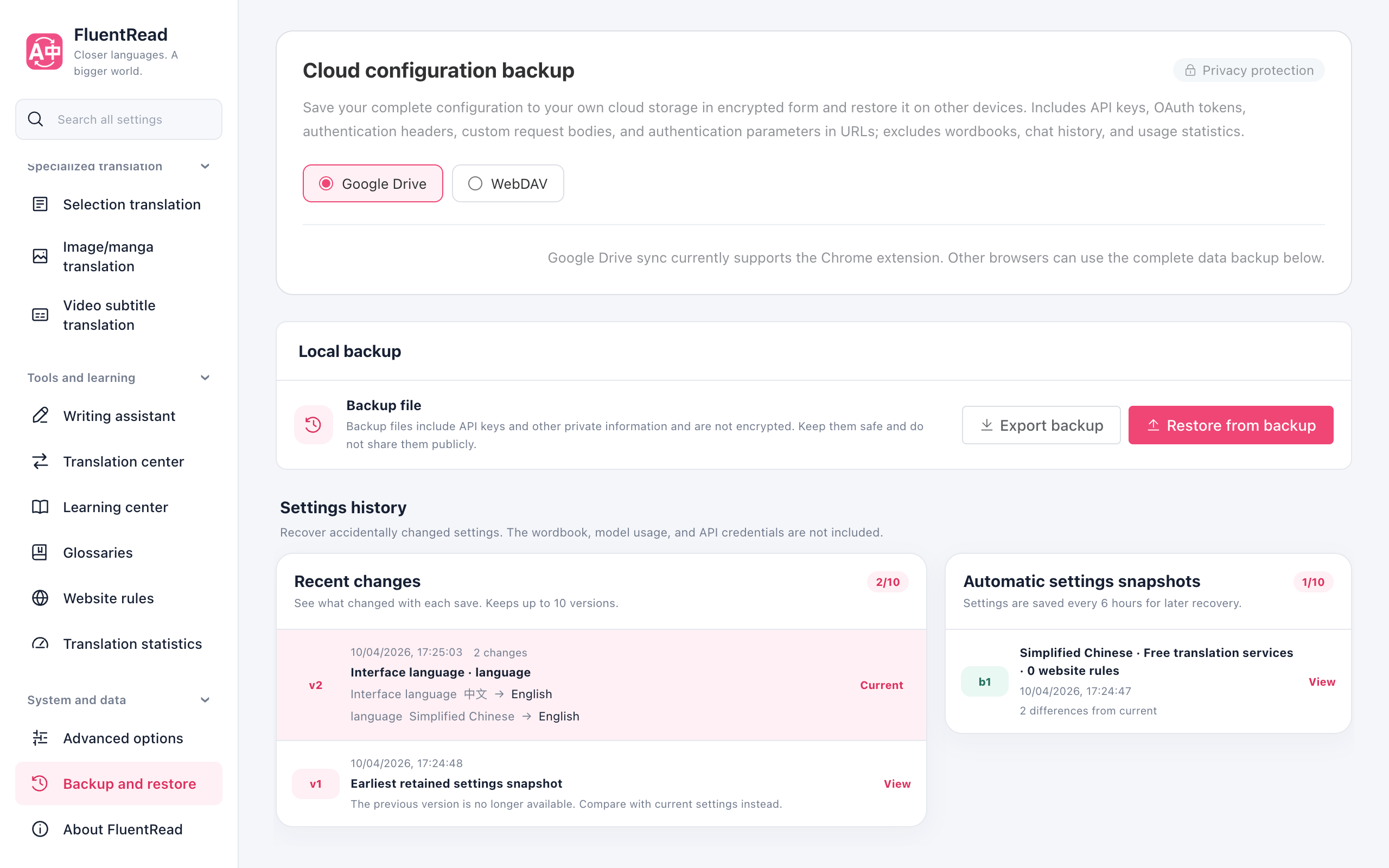
Open Settings → Backup & restore, export a full data backup, and save the file. When importing, review the preview and its scope before restoring.
A full backup can contain API keys, provider credentials, and saved original text. Keep it private. Earlier backups remain importable according to the import preview.
The learning center also offers Anki export.
Recent changes and automatic snapshots
Recent changes and automatic snapshots
Recent changes lists setting names, before-and-after values, and precise timestamps. A record initially shows changes from the previous saved version. Choose Compare with current to inspect the effect of restoring. The oldest retained record has no previous version to compare.
Automatic settings snapshots saves a snapshot every six hours and shows how many settings differ from the current configuration. Each list keeps up to ten records.
Settings history excludes vocabulary, model usage, and API credentials. Restoring requires confirmation.
Google Drive configuration sync
Google Drive configuration sync
Google Drive is one of the choices under Settings → Backup and restore → Cloud backup. Select it before starting the operation.
Availability depends on the installed version's settings page. General settings are the default scope; including sensitive connections requires consent to enable sensitive settings as described above.
- Check this operation’s scope, choose Sync with Google Drive now, and authorize Google access for the current operation.
- Check the account and preview local/cloud differences.
- Choose a sync direction or merge settings individually.
- Confirm, then check the result and last-sync time.
Opening settings does not access Drive automatically. The permission covers only FluentRead's hidden app data, not your other files, Gmail, or contacts. Google authorization and consent to include sensitive information are separate steps. Read the full sync privacy explanation for backup protection and deletion.
Cancelling a preview ends that operation. Revoking permission or uninstalling does not delete a cloud backup.
WebDAV configuration backup
WebDAV configuration backup
To use your own cloud drive, NAS, or server, select WebDAV in Cloud backup. Configure a directory URL and app password, test and save the connection, then review and confirm the backup operation.
Like Google Drive, this syncs only general settings by default and includes sensitive connections only with consent to enable sensitive settings. The WebDAV URL, username, and app password used to access the backup server stay on this device and are excluded from cloud backups. Saving, restoring, and merging are manual operations.
See the WebDAV guide for connection requirements, save and restore steps, file protection, and deletion.
Cache is different
Cache is different
Translation cache reuses completed translations. Clearing it does not delete vocabulary and does not replace a full backup.